
Microsoft windows 11 Emergency Update: Fixes, Risks & Install Guide
Does your laptop suddenly crash, does your Wi-Fi stop working, or does your laptop become slow even after a normal update?
If you’re a Windows user, you’ve probably encountered these problems at some point. This is why Microsoft Windows 11 emergency update exists.
Unlike regular updates, emergency updates are released quickly to fix critical issues that could harm your system, data, or security.
Many users ignore these updates or are afraid to install them.
In this complete guide, I will explain in simple terms what a Windows 11 emergency update is, what it fixes, the potential risks, and how to safely install it step by step.
What Is a Microsoft Windows 11 Emergency Update?
A Microsoft Windows 11 emergency update is a special update released outside of the normal update schedule.
If you want to learn more about this topic in detail, you can check here: Microsoft Windows 11 emergency update
Microsoft typically releases updates on Patch Tuesday (once a month), but when something goes seriously wrong, they release an emergency update immediately.
Emergency updates are released when a major security vulnerability is discovered in your system, PCs start crashing, essential features are broken by a recent update, or hackers are actively exploiting a bug.
These updates are also called:
Out-of-band updates
Hotfix updates
Critical security patches
Why Microsoft Releases Emergency Updates
Microsoft releases an emergency update when the issue is too risky to wait.
Common Reasons Include
Blue Screen of Death (BSOD) errors
Boot failure after an update
The internet or Wi-Fi is not working
Windows Defender is not updating
Data security vulnerabilities
Real Example
If you are planning to buy a new smartphone in 2026, this guide will help you: How to buy a smartphone in 2026
In past updates, some Windows 11 users reported:
PCs stuck in restart loops
Taskbar not responding
SSD performance dropping
Microsoft had to act fast. That’s when a Microsoft Windows 11 emergency update was released.
What Does the Windows 11 Emergency Update Fix?
Let’s break this into simple parts.
1. Critical Security Vulnerabilities
These are the most important fixes.
Emergency updates often patch:
Zero-day exploits
Remote code execution bugs
Privilege escalation issues
If ignored, hackers could:
Access your system remotely
Steal personal data
Install malware silently
2. System Stability Problems
Many emergency updates fix:
Random freezes
Sudden restarts
Black or blue screens
Example
After a normal update, some users can’t even reach the desktop.
Emergency updates often solve this.
3. Broken Windows Features
Sometimes updates break basic features like:
File Explorer
Start Menu
Taskbar
Bluetooth or Wi-Fi
Emergency updates restore these functions.
4. Performance Drops
Users may notice:
Slow boot time
Lag while opening apps
Battery draining fast
Emergency updates optimize background processes and fix bugs.
How to Check If You Need a Windows 11 Emergency Update
To check if you need a Microsoft Windows 11 emergency update, first go to Settings → Windows Update and click on Check for updates.
If Microsoft has released an emergency patch for your device, it will appear there as a Cumulative Update or Security Update.
You can also check your Update history to see if the latest update has been installed or is pending.
Additionally, if you’ve been experiencing issues such as PC crashes, boot problems, slow performance, VPN/network problems, Blue Screen of Death (BSOD), or malfunctions in Windows features in the past few days, there’s a strong possibility you should install the emergency update.
How to Install Microsoft Windows 11 Emergency Update (Step-by-Step)
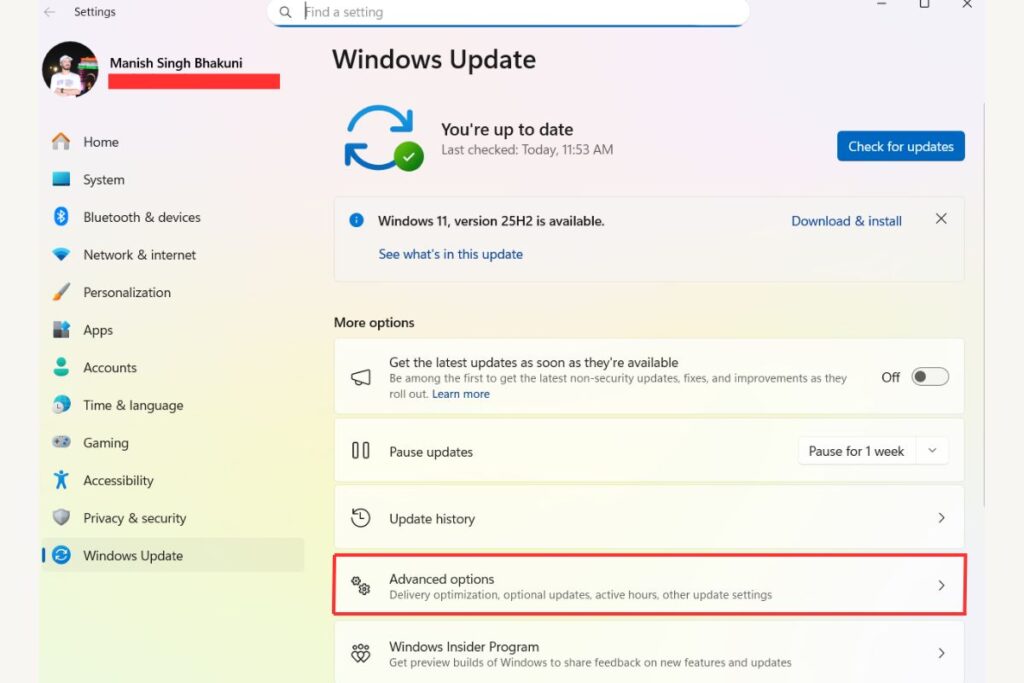
This is the most important part. Follow it carefully.
Method 1: Install via Windows Update (Recommended)
This is the safest and easiest method.
Step-by-Step Guide
Press Windows + I
Go to Settings
Click Windows Update
Select Check for updates
If an emergency update appears, click Download & Install
Restart your PC when asked
That’s it.
Method 2: Install from Microsoft Update Catalog
Use this only if Windows Update doesn’t work.
Steps
Open your browser
Visit Microsoft Update Catalog
Search the KB number (example: KB503XXXX)
Download the version for your system
Run the file and restart
⚠️ Only use official Microsoft sources.
Table: Emergency Update vs Regular Update
| Feature | Emergency Update | Regular Update |
|---|---|---|
| Release Time | Anytime | Monthly |
| Purpose | Critical fixes | General improvements |
| Security Risk | High | Normal |
| Installation Priority | Very High | Medium |
Risks of Installing a Windows 11 Emergency Update
Yes, there are some risks. Let’s be honest.
Possible Risks
Minor compatibility issues
Some apps may crash initially
Rare driver conflicts
However…
Why the Risk Is Usually Worth It
Security threats are more dangerous
Microsoft tests emergency updates carefully
Not installing may expose your data
In simple words:
The risk of not installing is usually higher.
Should You Install the Emergency Update Immediately?
You SHOULD install it if:
Microsoft marks it as “critical”
Your PC is unstable
It fixes security vulnerabilities
You Can Wait if:
Your PC works perfectly
Update is optional
You use the PC for critical work
But waiting too long is not advised.
How to Install Emergency Update Safely (Best Practices)
Follow these tips before installing.
1. Backup Important Data
Use:
External hard drive
OneDrive
Google Drive
2. Plug In Your Laptop
Never install updates on a low battery.
3. Close All Apps
This avoids file corruption.
4. Don’t Force Shutdown
Let the update finish completely.
What If the Emergency Update Fails?
Sometimes updates fail. Don’t panic.
Try These Fixes
Restart and try again
Run Windows Update Troubleshooter
Free up disk space
Check internet connection
If nothing works:
Roll back the update
Contact Microsoft support
How to Uninstall a Problematic Emergency Update
If the update causes issues, you can remove it.
Steps
Open Settings
Go to Windows Update
Click Update history
Select Uninstall updates
Choose the latest update
Restart PC
Use this only if necessary.
How Emergency Updates Affect Gaming & Work
For Gamers
Emergency updates can:
Fix FPS drops
Solve DirectX issues
Improve system stability
For Office Users
They:
Fix crashes during meetings
Improve file access
Enhance security for work data
How Often Does Microsoft Release Emergency Updates?
There is no fixed schedule.
They are released only when:
A serious issue appears
Security risk is high
Millions of users are affected
Sometimes you may not see any for months.
Windows 11 Emergency Update Myths (Busted)
Myth 1: Emergency updates damage PCs
❌ False. They fix serious problems.
Myth 2: Only advanced users need them
❌ False. Every user benefits.
Myth 3: You should always ignore updates
❌ Very risky.
Conclusion: Microsoft Windows 11 Emergency Update
Microsoft Windows 11 Emergency Update is a critical patch designed to quickly fix serious security vulnerabilities, sudden system bugs, and stability issues that could impact your PC’s performance or safety.
If your device is running Windows 11, installing this emergency update is strongly recommended because it helps protect your system from potential threats, prevents unexpected crashes, and improves overall reliability.
To stay safe and avoid future problems, users should update Windows as soon as possible through Settings > Windows Update, restart the PC if required, and ensure all important updates are successfully installed.
FAQs: Windows 11 Emergency Update – Fixes, Risks & Install Guide
1. What is a Microsoft Windows 11 emergency update?
It is a critical update released to fix serious security or system problems outside the regular schedule.
2. Is it safe to install a Windows 11 emergency update?
Yes. These updates are tested and released only when necessary.
3. Can I skip an emergency update?
You can, but it is not recommended, especially if it fixes security issues.
4. What should I do if my PC becomes slow after the update?
Restart your PC, update drivers, and check background apps.
5. How do I know if an update is an emergency update?
Microsoft usually labels it as critical or releases it outside of Patch Tuesday.
Also Read: Techlymate