
Best AI Image Upscalers in 2026: Top Tools to Upscale and Enhance Images
Introduction
Have you ever come across a fantastic photo, only to discover later that it was blurry, pixelated, or too small to use? A low-resolution image can ruin a blog post, product listing, social media design, presentation, or even a family photo.
Traditional image resizing methods might make an image larger, but they fail to restore realistic detail. This is where AI image upscalers have changed the game. Modern tools can analyze patterns, edges, faces, textures, and other visual data to create larger—and often much clearer—versions of images.
However, it is important to note that not all AI upscalers are created equal. Some excel at real-world photos, others work wonders on faces, some are designed for AI-generated artwork, and there are also excellent free options available.
In this guide, we will compare the best AI image upscalers of 2026, identify which tools are best suited for specific tasks, discuss their pros and cons, and show you how to choose the right tool without wasting time or money.
What is an AI image upscaler?
An AI image upscaler is a software tool that uses machine-learning models to increase an image’s resolution while attempting to preserve or reconstruct visual details.
Instead of simply stretching existing pixels, an AI upscaler analyzes the image and predicts what the additional pixels and details should look like.
For example, if you have a small 800 × 600 image, resizing it to 1600 × 1200 using traditional methods might result in a blurry image.
An AI upscaler can attempt to reconstruct sharp edges, textures, facial features, hair, and other details while increasing the resolution.
Quick Answer
If you are looking for the best professional AI image upscaler in 2026, Topaz Gigapixel is one of the top choices because it offers specialized models for different types of images and supports large output sizes.
For a free and open-source option, Upscayl is a great place to start.
For users already working within the Adobe ecosystem, Photoshop and Lightroom now offer powerful built-in upscaling options.
How AI image upscaling works
Traditional image resizing relies primarily on pixel interpolation. AI upscaling works differently.
A typical AI upscaling process looks like this:
- You upload a low-resolution image.
- The AI analyzes patterns, edges, textures, colors, and shapes.
- The model predicts the missing visual information.
- It generates additional pixels.
- The result is sharpened and enhanced.
- You download the larger image.
This does not mean that AI can magically retrieve information that was never captured in the first place.
Instead, AI makes an educated guess based on patterns learned during training.
This distinction is important.
AI upscaling does not recreate the exact original details
If an image is extremely blurry, heavily compressed, or severely degraded, the AI model might generate details that look realistic but were not actually present in the original image.
This is particularly important for:
- Old family photos
- Faces
- Historical documents
- Medical images
- Evidence
- Product labels
- Logos
- Images containing a lot of text
For professional work, always compare the enhanced image with the original.
Best AI Image Upscalers in 2026
After considering image quality, ease of use, available models, workflow, output options, and different use cases, these are some of the strongest AI image upscalers to consider in 2026.
| AI Upscaler | Best For | Main Advantage |
|---|---|---|
| Topaz Gigapixel | Professional photographers | Advanced models and high-quality enlargement |
| Adobe Photoshop | Designers and editors | Upscaling inside a complete editing workflow |
| Adobe Lightroom | Photographers | Super Resolution and RAW workflow |
| Magnific | Creative professionals | Creative detail reconstruction |
| Upscayl | Free users | Free, open-source desktop upscaling |
| Let’s Enhance | Online users | Multiple enhancement and upscale modes |
| Remini | Portraits and old photos | Easy face and photo enhancement |
| Pixelcut | eCommerce and social media | Simple online/mobile workflow |
1. Topaz Gigapixel — Best Overall AI Image Upscaler
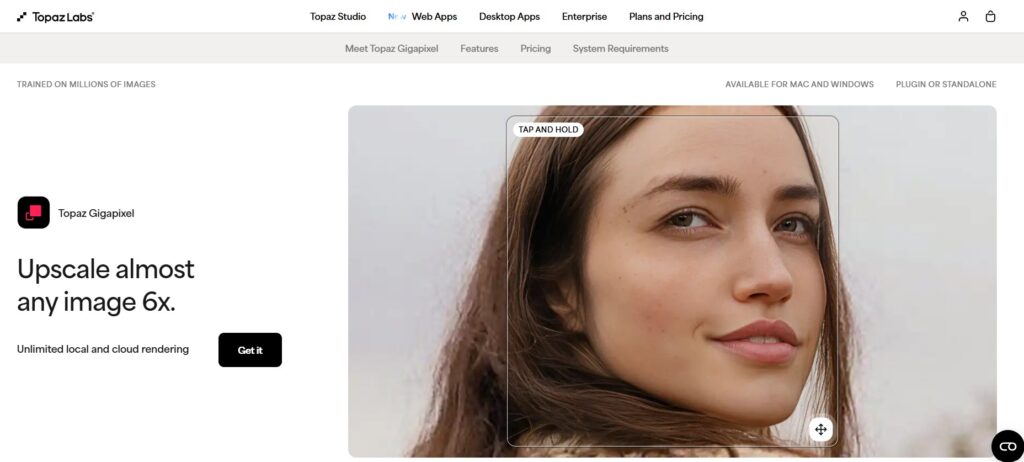
If you are a professional photographer or designer, or work in image restoration and high-quality printing, this tool could be the best option for you. If you do not want to compromise on image quality, you should definitely try Topaz Gigapixel. Its existing models are designed for specific types of images, rather than applying a one-size-fits-all enhancement process to every photo.
Topaz’s documentation lists several models, such as Standard, High Fidelity, Low Resolution, Text & Shapes, Art & CG, Recover, Redefine, and Face Recovery.
This software can upscale images based on a scale factor or custom dimensions; according to current documentation, the longest side can reach up to 32,000 pixels.
What makes Topaz Gigapixel special?
It gives you greater control over how the AI processes different source images.
For example:
- Standard: General-purpose photos and graphics
- High Fidelity: High-quality photographs where preserving original detail is crucial
Low - Resolution: Small or heavily compressed images
- Text & Shapes: Logos, typography, and graphics
- Art & CG: Illustrations and computer-generated artwork
Face - Recovery: Enhancement focused on portraits
- Recover: Low-quality images requiring detail recovery
Topaz recommends using ‘Auto Mode’ to get started, while also allowing users to adjust settings for denoising, sharpening, and compression correction.
Pros
- Excellent professional-grade image quality
- Multiple specialized AI models
- Supports very large images
- Local processing options
- Useful for photos, artwork, graphics, and restoration
- Batch processing workflow available
Cons
- More expensive than basic online tools
- Some advanced features can be resource-intensive for computer hardware
- Beginners may need time to understand the different models
2. Adobe Photoshop Generative Upscale — Best for Designers
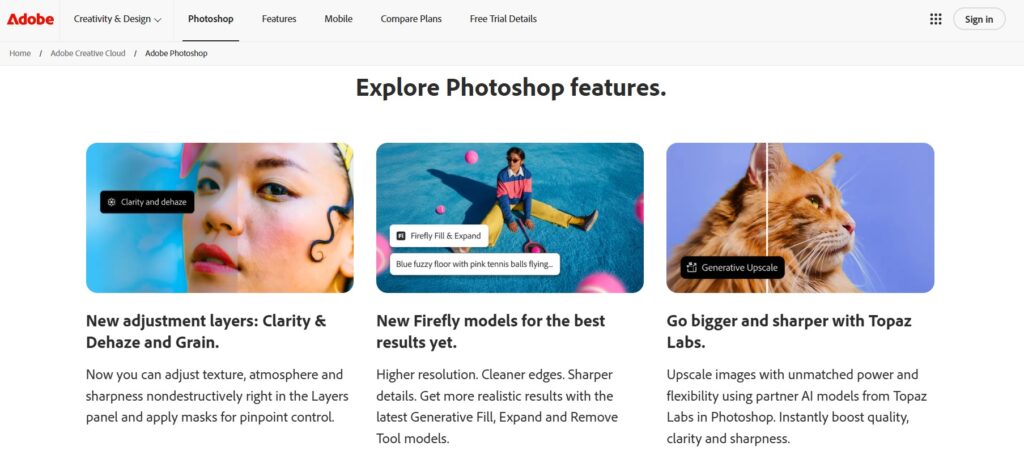
This tool is ideal for designers, photographers, content creators, and anyone interested in Photoshop. If you are already using Photoshop, you likely won’t need a separate upscaling app. Adobe Photoshop includes Generative Upscale, featuring models like Firefly Upscaler as well as partner models such as Topaz Gigapixel and Topaz Bloom. This feature allows users to choose between 2x or 4x scaling based on their project and the selected model.
Why Photoshop is beneficial
You can upscale an image and immediately continue editing it.
For example:
- Open your image.
- Select Image > Generative Upscale.
- Choose your preferred model.
- Select 2x or 4x.
- View the result.
- Continue editing in Photoshop.
This is particularly useful when you need to do more than just enlarge the image.
You might also need to:
- Remove unwanted elements
- Adjust colors
- Correct lighting
- Change the background
- Add text
- Retouch skin
- Prepare images for social media
Pros
- Excellent all-in-one workflow
- Integrated with
- Photoshop
- Multiple AI models
- Beneficial for professional editing
- Great option for existing
- Adobe users
Cons
- Requires a Photoshop subscription
- Some generative features use credits
- Not as specialized for every task as a dedicated upscaler
3. Adobe Lightroom Super Resolution — Best for Photographers
Lightroom is a top-tier choice for photo editing, particularly for those who work with RAW images. Adobe’s Super Resolution doubles an image’s width and height, effectively quadrupling the total pixel count. This is especially useful for cropped images and large prints.
What sets Lightroom apart
Lightroom was designed with photography in mind, rather than general graphic design.
This makes it particularly useful for:
- RAW photos
- Landscape photography
- Wildlife photography
- Wedding photography
- Travel photography
- Large prints
- Cropped images
Adobe also offers new generative upscaling options in Lightroom, including 2x and 4x workflows powered by partner models.
Pros
- Excellent photography workflow
- Robust RAW support
- Easy to use
- Integrated editing
- Great for print preparation
Cons
- Super Resolution itself is limited to 2x linear resolution
- Better suited for photographers than graphic designers
- Some new generative features use credits
4. Magnific — Best for Creative AI Upscaling
Magnific adopts a more creative approach to image upscaling. Its platform can upscale and enhance images while allowing users to guide the results through prompts and creative controls.
The new Magnific upscaler offers both ‘Classic’ and ‘Magnific’ models, including options for batch processing and high-resolution output.
Key Advantage
Magnific can recreate or add new visual details.
It is particularly useful for:
- AI-generated images
- Digital art
- Fantasy artwork
- Game assets
- Illustrations
- Concept design
However, this creative reconstruction is also its biggest drawback.
If preserving the original look exactly is essential, use a conservative model or a fidelity-focused upscaler.
Pros
- Excellent creative enhancement
- Superb AI artwork support
- Prompt-guided enhancement
- Creative control
- Batch processing
Cons
- Can alter original details
- Not always ideal for precise photo restoration
- Usage depends on plans and credits
5. Upscayl — Best Free AI Image Upscale
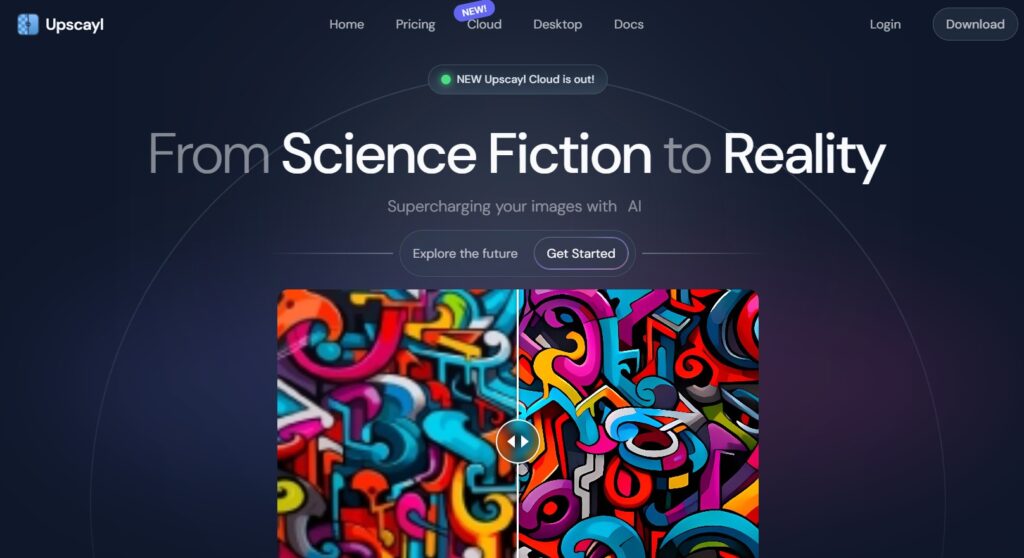
This tool is ideal for students, bloggers, beginners, privacy-conscious users, and anyone looking for a free desktop solution. If you don’t want to spend money on expensive AI enhancement tools, you should definitely give Upscayl a try.
Upscayl is a free, open-source desktop application available for Windows, macOS, and Linux. It processes images locally and offers multiple AI models.
Why Upscayl is great
You can download the software and process images on your computer without needing a constant internet connection.
It supports:
- Windows
macOS - Linux
- Multiple AI models
- Batch processing
- Custom output resolution
- Local processing
Upscayl claims its desktop software can upscale images by up to 16x, though actual results depend on the source image and the selected model.
Pros
- Free
- Open-source
- Local processing
- Cross-platform
- No subscription required for the desktop app
- Good for batch workflows
Cons
- Hardware performance matters
- Results may vary depending on the image
- Less polished compared to premium commercial tools
- May require experimentation for advanced restoration
6. Let's Enhance — The best online AI upscaler for various types of images

If you need assistance with tasks like online image enhancement, e-commerce, and printing, this tool is an excellent choice. Let’s Enhance offers specialized AI workflows for different types of images. Its ‘Prime’ model is designed to increase resolution while preserving natural textures and realistic details. The service claims it can upscale images by up to 16x.
It also provides specific options for categories such as digital art and vintage photos.
Best Use Cases
- Product photos
- Portraits
- Landscape images
- Digital artwork
- Marketing graphics
- Print preparation
- Vintage photos
Pros
- Easy online workflow
- Multiple AI modes
- Robust print-oriented features
- Supports various image categories
- Fine-grained enhancement control
Cons
- Requires image upload for online processing
- Free usage may be limited
- Advanced features may require payment
7. Remini — Best for Faces and Old Photos
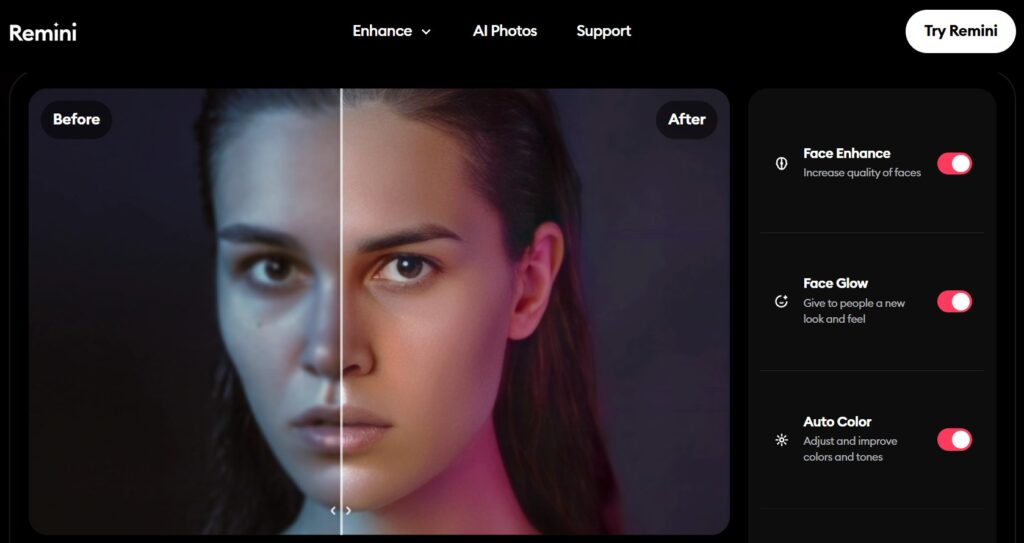
This tool is ideal for those looking to enhance portraits, selfies, vintage family photos, and blurry pictures. Remini focuses more on photo enhancement rather than professional desktop-grade image production.
Its platform includes features such as face enhancement, old photo restoration, color correction, background enhancement, and video enhancement.
This makes it useful for beginners.
Best use cases
- Old family photos
- Portraits
- Selfies
- Social media photos
- Photos with blurry faces
Important limitation
The face-focused AI can sometimes make people look different from their actual appearance.
Always check:
- Eyes
- Teeth
- Skin texture
- Face shape
- Hair
- Small, identifying features
8. Pixelcut — Best for quickly creating product and social media photos
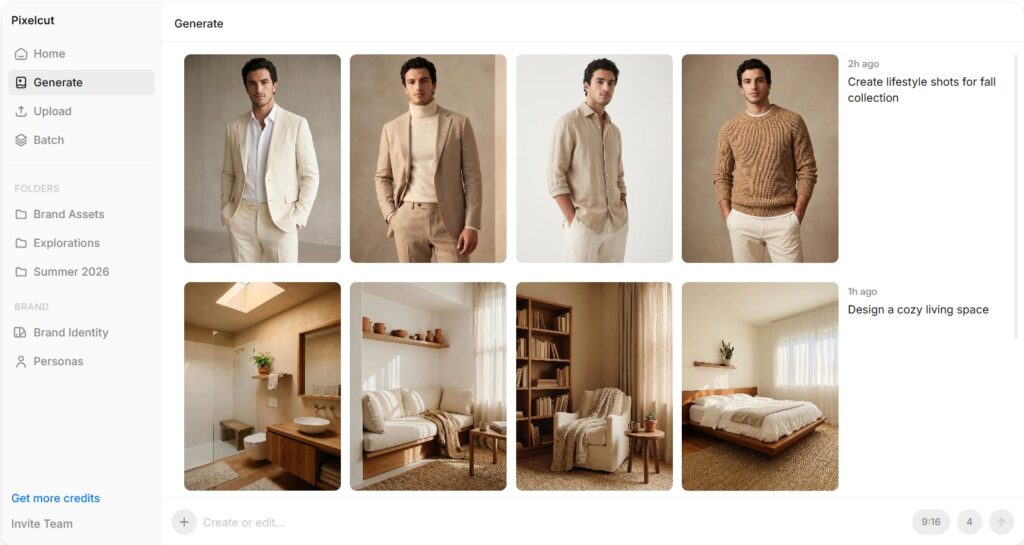
If you are an e-commerce seller, marketer, creator, or mobile user, this tool is perfect for you. Pixelcut offers an easy AI image upscaling workflow on both web and mobile.
According to its current documentation, the upscaling tool supports output up to 6000 × 6000 pixels, while Pro members get 4x upscaling and enhanced detail.
Why choose Pixelcut?
It is especially convenient when creating:
- Product listings
- Social media graphics
- Marketing images
- Online store visuals
- Simple promotional content
Its interface feels less complex compared to professional desktop software
Pros
- Simple workflow
- Useful for e-commerce
- Web and mobile access
- Fast for everyday tasks
Cons
- Less control compared to professional desktop software
- Output limitations vary by plan
- Not primarily designed for advanced photo restoration
Best AI Image Upscaler Comparison
Tool
Best For
Ease of Use
Professional Control
Free Option
Topaz Gigapixel
Professional image enlargement
Medium
Excellent
Limited
Photoshop
Designers
Medium
Excellent
Trial/plan dependent
Lightroom
Photographers
Easy
Excellent
Trial/plan dependent
Magnific
Creative images
Easy
Excellent
Limited
Upscayl
Free desktop use
Easy
Good
Yes
Let’s Enhance
Online enhancement
Easy
Good
Limited
Remini
Faces and old photos
Very Easy
Basic
Limited
Pixelcut
Product/social images
Very Easy
Basic
Yes/limited
Which AI Image Upscaler Is Best for You?
No single tool suits everyone, as preferences vary and people use tools for different needs. Therefore, before determining the right tool for you, you need to know your preferences and the intended use case. Use the quick guide below to find the right tool for you:
Choose Topaz Gigapixel if:
- You need professional image quality.
- You work on large-format prints.
- You are restoring old or low-resolution images.
- You require specialized AI models.
- You want fine-grained control over every aspect.
Choose Photoshop if:
- You already use Adobe Photoshop.
- You need to both upscale and edit images.
- You want generative editing tools within the same workflow.
Choose Lightroom if:
- You are primarily a photographer.
- You work with RAW images.
- You want a simple, organized photography workflow.
Choose Magnific if:
- You work with AI-generated artwork.
- You want creative detail reconstruction.
- You are creating concept art or illustrations.
Choose Upscayl if:
- You want a free solution.
- You prefer desktop software.
- You want local processing.
- You use Windows, macOS, or Linux.
Choose Remini if:
- You primarily want to enhance faces.
- You want to restore old family photos.
- You want a simple mobile workflow.
How to Upscale an Image Without Losing Quality
AI alone doesn’t guarantee excellent results; your workflow matters too.
Step 1: Start with the highest-quality original image
If you have the original photo, never upscale a compressed screenshot.
Use these:
- Original camera files
- RAW files
- High-quality
- JPEGs
- Original PNG files
Avoid repeatedly saving JPEG files, as repeated compression can introduce artifacts (visual imperfections) into the image.
Step 2: Clean up the image first
If the image has excessive noise, compression artifacts, or blurriness, consider fixing these issues before or during the upscaling process.
Some AI tools handle all these tasks simultaneously:
- Denoising (removing noise)
- Sharpening (enhancing clarity)
- Fixing compression artifacts
- Face recovery
For example, Topaz offers separate controls for denoising, sharpening, and fixing compression issues.
Step 3: Don't automatically choose maximum upscaling
Bigger isn’t always better.
If you need a 2,000-pixel image, there is no reason to create a 16,000-pixel file.
Excessively large files can lead to:
- Longer processing times
- Higher storage requirements
- Slower online loading speeds
- Excessive detail
- Increased website page size
Step 4: Compare "Before" and "After"
Always zoom in to examine key areas. Check these elements:
- Eyes
- Hair
- Skin
- Fingers
- Text
- Logos
- Product edges
- Fine patterns
Step 5: Export correctly
For websites, choose the right format and compress the final image.
For example:
- JPEG: Photos
- PNG:
- Transparency and graphics
- WebP: Web performance
- AVIF: Modern web delivery (if your workflow supports it)
Remember, increasing the resolution does not automatically improve a website’s SEO.
A massive 10 MB image can actually harm page performance.
AI Upscaling Best Practices for Bloggers
If you are using AI-upscaled images on your website, follow these guidelines:
1. Avoid uploading unnecessarily large images
Blog images rarely require resolutions in the hundreds of megapixels.
2. Keep the original file
Always save the original image separately alongside the AI-enhanced copy.
3. Use descriptive file names
Instead of:
IMG_20260819.jpg
Use:
best-ai-image-upscalers-2026.jpg
4. Write meaningful alt text
Alt text should provide information about the image in a natural way.
Example:
“Comparison of AI image upscalers showing an enhanced low-resolution photo”
Do not stuff the alt text with too many keywords.
5. Compress before publishing
AI-upscaled images can be significantly larger than the original images.
Maintain good visual quality while compressing.
6. Understand the difference between upscaling and restoration
Upscaling increases image size and can reconstruct details.
Restoration may involve:
- Removing scratches
- Repairing damage
- Reducing noise
- Color correction
- Facial enhancement
Different tools are better suited for different tasks.
AI Image Upscaling: Pros and Con
Pros
- Makes small images more usable
- Can recover convincing detail
- Improves print potential
- Helps restore old images
- Useful for eCommerce
- Can improve AI-generated artwork
- Saves time compared with manual editing
Cons
- Cannot recover guaranteed original information
- May invent details
- Can create unnatural textures
- Faces can change
- Text may become distorted
- Large files can hurt website performance
- Premium tools can become expensive
Is AI Image Upscaling Safe?
While AI upscaling is generally easy, it is important to consider privacy when uploading images to an online service.
Before uploading sensitive images, be sure to check the provider’s:
- Privacy policy
- Data retention policy
- Training policy
- Terms regarding commercial use
- Account and deletion options
For confidential images, local processing is often a better option, if available.
For example, the Upscayl desktop application processes images locally instead of relying on cloud processing.
Also, exercise caution with copyrighted images.
Enhancing an image with AI does not grant you permission to use someone else’s photo for commercial purposes.
What Is the Best Free AI Image Upscaler?
Upscayl is one of the best free AI image upscalers for desktop users.
It is open-source, supports Windows, macOS, and Linux, and performs processing locally.
For quick online tasks, Pixelcut and other web-based services can also be convenient.
However, “free” doesn’t always mean “top-tier quality.” For professional restoration or large-format printing, paid tools like Topaz Gigapixel can offer better control.
What is the best AI upscaler for old photos?
For old photos, the best choice depends on the condition of the image.
Topaz Gigapixel is a great option when you need professional control and a variety of restoration models.
Remini is particularly effective for portraits and faces.
For heavily damaged photos, combining the following steps can yield better results:
- Removing dust and scratches
- Reducing noise
- Face restoration
- AI upscaling
- Manual color correction
Do not rely solely on “one-click enhancement” for historically significant photos.
What is the best AI upscaler for AI-generated images?
Magnific is an excellent choice for AI-generated artwork, as it is designed to add detail and provide creative control.
Topaz also offers specialized “Art & CG” and generative models for various types of images. The right choice depends on what you are looking for:
- Maximum fidelity to the original image
- More realistic detail
- Creative reconstruction
- Clean edges
- Larger output
If preserving the original look is important, choose a workflow that maintains that aesthetic rather than a model that introduces significant creative changes.
Conclusion
The best AI image upscaler depends on what you want to achieve.
We highly recommend Topaz Gigapixel for professional-grade image resizing. If you are already using the Adobe ecosystem, Adobe Photoshop is an excellent choice, while Lightroom is particularly useful for photographers and RAW workflows. Magnific is a fantastic option for creative projects and AI-generated artwork. Upscayl stands out as a free, open-source alternative, whereas Remini is convenient for enhancing portraits and restoring old photos.
The bottom line is this: don’t judge an upscaler solely by its maximum advertised scaling factor. Instead, evaluate it based on how naturally it preserves the image that truly matters to you.
Start with the original file, choose the right AI model, upscale only as much as necessary, check for essential details at 100% zoom, and optimize the final image before publishing.
If you regularly work with images for blogging, photography, e-commerce, or social media, trying out two or three upscalers on the same image is often the quickest way to determine which one best suits your workflow.
Which AI image upscaler have you tried? Share your experience in the comments, and if you found this guide helpful, consider sharing it with another creator who needs high-quality images.
Frequently Asked Questions
1. What is the best AI image upscaler in 2026?
Topaz Gigapixel is one of the best options for professional image upscaling because it offers specialized models for different types of images and supports large output sizes.
2. Is there a free AI image upscaler?
Yes. Upscayl is a free, open-source desktop AI image upscaler for Windows, macOS, and Linux.
3. Can AI really improve low-resolution images?
Yes, AI can create larger images that often contain more detail. However, it cannot guarantee the recovery of information that wasn’t captured in the first place; some details are reconstructed or estimated.
4. What is the best AI upscaler for old photos?
Both Topaz Gigapixel and Remini are excellent choices. Topaz offers more professional control, while Remini is easy to use for portraits and old photos.
5. What is the best AI upscaler for faces?
Remini is specifically designed to enhance portraits and faces. Topaz also features a dedicated ‘Face Recovery’ model.
6. Can AI upscalers convert images to 4K?
Yes. Depending on the software and the original image, AI upscalers can generate 4K or even larger images. However, the quality of the original image significantly impacts the final result.
7. Does upscaling improve image quality?
It can enhance sharpness, clarity, and detail, but the outcome depends on the original image, the AI model used, and the settings.
8. Is AI upscaling better than Photoshop's resizing?
For many challenging low-resolution images, specialized AI upscaling can yield better results than traditional interpolation. Photoshop now also includes ‘Generative Upscale,’ which makes direct comparisons a bit more complex.
9. Can I use AI-upscaled images on my website?
Yes, provided you have the rights to use the original image and the upscaling service’s terms permit your intended use. Always optimize the final image for good web performance.
10. Which AI image upscaler should beginners use?
Beginners should start with user-friendly tools like Upscayl, Remini, or Pixelcut. More advanced users can utilize Topaz Gigapixel, Photoshop, Lightroom, or Magnific, depending on their specific needs.
Also Read: Techlymate