
Best Android Tips and Tricks for 2026: Secret Features Every User Should Know
Android phones have become smarter than ever before, and today, more people are using Android than ever. This is because Android has evolved and consistently provided users with excellent features and functionality.
Do you know of a science trick that will blow your mind? If not, click here to find out: 30 Interesting Science Facts for Students in 2026.
While many people use smartphones, most tend to utilize only basic features—such as calling, messaging, YouTube, and social media. The truth is, Android smartphones are packed with numerous hidden tools and secret settings that can make your device faster, more secure, and easier to use.
That is precisely why mastering the best Android tips and tricks can completely transform your smartphone experience. Whether you use a Samsung, Xiaomi, Realme, Motorola, OnePlus, or Google Pixel device, these Android tricks will help you:
- Improve battery life
- Boost performance
- Safeguard your privacy
- Customize your
- phone like a pro
- Utilize Android’s
- hidden features
In this comprehensive guide, you will discover the best Android tips and tricks for 2026, explained in simple, easy-to-understand language.
Why Android Is More Powerful in 2026
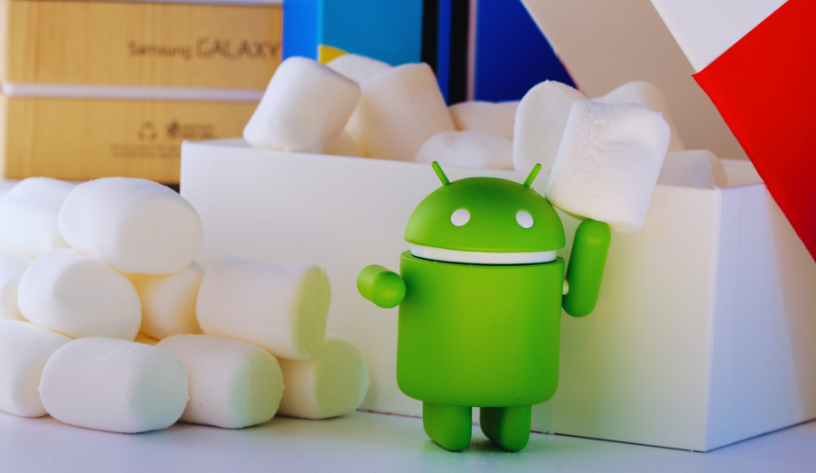
As I mentioned earlier, Android has undergone significant improvements. While older phones offered only limited options, today’s Android devices provide a comprehensive suite of features—including AI-powered capabilities, enhanced battery life, smart privacy controls, superior multitasking, and robust security tools—all of which ensure that users enjoy a seamless and secure experience.
If you want to learn more about this, click here: Best Android Tips and Tricks
Nowadays, even budget-friendly phones come equipped with features that were once exclusive to flagship devices. This is precisely why Android is so widely loved and remains such a powerful platform today. Consequently, in the current landscape, mastering the best Android tips and tricks is highly beneficial.
1. Use AI Smart Assistant Features
Android AI Features Are Smarter Than Ever
All new Android phones currently being manufactured come with built-in AI features provided by the manufacturers. As you are surely aware, just how powerful AI is in today’s world, learning about and understanding AI has become essential in the present times. Your phone can now perform the following tasks with ease:
- Predict app usage
- Suggest replies
- Improve photos automatically
- Reduce battery drain intelligently
Example
If you always open YouTube after dinner, Android learns your habit and keeps the app ready in memory. This makes the phone feel faster.
How to Enable AI Features
Go to:
Settings → AI Features → Smart Suggestions
Turn on:
- Smart reply
- App prediction
- AI battery optimization
These are among the best Android tips and tricks for improving daily performance.
2. Turn On Adaptive Battery
Save Battery Without Extra Apps
Users often complain about their phone batteries draining too quickly; however, Android already features a built-in, hidden solution known as ‘Adaptive Battery.’ This feature limits battery usage for apps that you rarely use. If you are also experiencing battery-related issues with your phone, you can enable this feature. Turning it on offers the following benefits:
- Longer battery life
- Less background activity
- Better performance
How to Enable
Go to:
Settings → Battery → Adaptive Battery
Turn it ON.
3. Use Split Screen Multitasking
Run Two Apps Together
Did you know that you can run two apps at the same time on your Android phone? If you weren’t aware, this trick really works and lets you run two apps concurrently. By enabling this feature, you can do the following:
- Watch YouTube while chatting
- Take notes during online classes
- Use a calculator while browsing
How to Use Split Screen
- Open recent apps
- Tap the app icon
- Select “Split Screen”
- Choose the second app
This feature saves time and improves productivity.
4. Customize Lock Screen Shortcuts
Make Your Phone Faster to Use
Many Android users overlook lock screen customization, even though you can access certain phone features without unlocking the device. With this feature, you can do the following:
- Camera shortcut
- Flashlight
- QR scanner
- Voice recorder
Why It Helps
You can access important tools instantly without unlocking the phone.
5. Use Hidden Developer Options
Unlock Advanced Android Features
Navigate to your phone’s Developer Options to discover Android’s hidden settings. This section contains various features that you can utilize to enhance your Android device, making it feel more premium and faster. Key features found within Developer Options include:
- Animation speed control
- USB debugging
- Background process limits
- Refresh rate monitoring
How to Enable Developer Mode
- Open Settings
- Go to About Phone
- Tap “Build Number” 7 times
Now Developer Options will appear.
Reduce Animation Speed
This trick makes your phone feel much faster.
Go to:
Developer Options → Animation Scale
Set:
- Window animation = 0.5x
- Transition animation = 0.5x
The phone becomes smoother instantly.
This is one of the best Android tips and tricks for older phones.
6. Protect Privacy Using Permission Manager
Stop Apps from Tracking You
Never use apps on your phone that are not secure. This is because such apps collect your sensitive data and later use that very data to compromise you. Therefore, always maintain strong privacy controls on your phone. To manage your phone’s privacy, you can do the following:
- Camera access
- Microphone access
- Location tracking
How to Check Permissions
Go to:
Settings → Privacy → Permission Manager
Remove permissions from suspicious apps.
7. Use Nearby Share for Fast File Transfer
Transfer Files Without Internet
Android includes several features that allow you to transfer files without an internet connection. This is Android’s “Nearby Share” feature, which functions similarly to AirDrop. With the help of Nearby Share, you can transfer the following:
- Photos
- Videos
- Documents
- Apps
Why It Is Useful
- Faster than Bluetooth
- No internet required
- Easy sharing between Android devices
8. Enable Dark Mode Properly
Improve Battery and Eye Comfort
Prolonged screen time takes a toll on both your mind and your eyes—and it impacts your phone’s battery as well. Therefore, keep your phone’s Dark Mode enabled. This not only conserves battery power but also minimizes strain on your mind and eyes. Additionally, enabling Dark Mode gives your phone a stylish appearance. It offers the following benefits:
- Better battery backup
- Reduced eye strain
- Cleaner look
How to Enable
Go to:
Settings → Display → Dark Mode
9. Remove Bloatware Apps
Free Storage and Improve Speed
One of the biggest frustrations users face while operating their phones is related to storage. If storage capacity is low, it fills up quickly—causing inconvenience and preventing you from storing your valuable data on your device. Your phone likely contains several apps that you never actually use. In such cases, these apps should be removed. The unnecessary apps on your phone do the following:
- Use RAM
- Drain battery
- Slow down performance
What You Should Do
Disable apps you never use.
Go to:
Settings → Apps → Disable
10. Use Focus Mode for Better Productivity
Avoid Distractions
This feature is designed specifically for students or for those who are busy with their work and wish to avoid other distractions. In such situations, you should steer clear of unnecessary distractions on your phone. To do this, you can enable Focus Mode on your device. This feature temporarily blocks distracting apps. It is perfect for the following individuals:
- Students
- Office work
- Study sessions
Example
You can block Instagram and YouTube while studying.
Enable Focus Mode
Go to:
Settings → Digital Wellbeing → Focus Mode
11. Use Gesture Navigation
Make Android Feel Modern
Give your phone a modern makeover. Since buttons take up screen space, you can use Gesture Navigation instead. This replaces your buttons with touch- or slide-based controls. Gesture Navigation offers the following benefits:
- More display area
- Faster movement
- Smooth experience
Enable It
Go to:
Settings → System → Gestures
12. Scan Documents Using Camera
Turn Your Phone into a Scanner
Now you can scan documents directly using your phone’s camera—without needing to download any third-party apps. Nowadays, manufacturers often pre-install document scanning capabilities on Android devices, so simply use your phone as a scanner. You can scan the following items using your phone:
- Notes
- IDs
- Receipts
- Assignments
Google Drive and many camera apps support this feature.
13. Find Hidden Storage Hogs
Clean Junk Files Smartly
Junk files slow down your phone, making it difficult for you to work. Therefore, clean your phone in a smart way. Hidden files cause your phone’s storage to fill up quickly; to clear them, you can use a Storage Analyzer.
Go to:
Settings → Storage
Check:
- Large files
- Duplicate photos
- Unused apps
Delete unnecessary data regularly.
14. Use Emergency SOS Features
Important Safety Feature
This is arguably the most important feature of Android. It is also extremely useful for you, as it enables you to seek assistance during an emergency. This feature offers the following capabilities:
- Emergency calling
- Location sharing
- Medical information
Why It Matters
Very useful during accidents or emergencies.
15. Improve Gaming Performance
Best Android Tips and Tricks for Gamers
Nowadays, there are many people who use their phones primarily for gaming. However, many gamers may not be aware that the very phones they use contain a host of excellent hidden tricks designed just for them. These features are particularly helpful in Gaming Mode:
- Reduce notifications
- Improve performance
- Reduce lag
Additional Tips
- Clear background apps
- Use a high refresh rate
- Enable game booster mode
16. Use Secure Folder or App Lock
Protect Private Data
Your phone holds immense importance for you, and it serves as the repository for all your various types of data. Consequently, you may often find yourself concerned about how to keep such a vast amount of data secure. There is no need to worry, however, as Android offers features specifically designed to help you safeguard your data. You can easily hide the following items:
- Photos
- Videos
- Apps
- Documents
This improves privacy and security.
17. Enable Auto-Update for Security
Keep Your Phone Safe
In today’s world, online fraud has become increasingly prevalent, and hackers have their sights set on everyone. Therefore, you can take the responsibility of securing your phone into your own hands. To do this, you should ensure that you keep your phone updated regularly, as hackers often target older devices and new users. Update your phone:
- Android version
- Security patches
- Apps
Enable Auto Updates
Go to:
Settings → Software Update
18. Customize Quick Settings Panel
Save Time Daily
With the rapid pace at which technology is advancing today, devices such as phones and laptops are becoming an integral part of people’s lives. Consequently, saving time is becoming increasingly difficult. However, you can save time by making small adjustments to the settings on your phone. You can configure these quick toggles according to your specific needs:
- Wi-Fi
- Bluetooth
- Flashlight
- Hotspot
Arrange them based on daily use.
Quick Table: Best Android Tips and Tricks
| Feature | Main Benefit |
|---|---|
| Adaptive Battery | Longer battery life |
| Split Screen | Better multitasking |
| Developer Options | Faster performance |
| Nearby Share | Quick file transfer |
| Focus Mode | Improved productivity |
| Dark Mode | Battery saving |
| Permission Manager | Better privacy |
| Gaming Mode | Smoother gaming |
Common Android Mistakes to Avoid
Many users unknowingly damage performance.
Avoid these mistakes:
- Installing too many cleaner apps
- Ignoring updates
- Using unknown APK files
- Keeping full storage
- Allowing unnecessary permissions
Best Android Tips and Tricks for Older Phones
If your phone is old, try these:
Helpful Tricks
- Reduce animation speed
- Disable background apps
- Use Lite apps
- Clear cache regularly
- Remove widgets
These small changes make a big difference
Future of Android Smartphones in 2026
Android is becoming more AI-powered every year.
Future Android features may include:
- Better voice control
- Advanced AI assistants
- Smarter battery prediction
- More privacy tools
That is why learning the best Android tips and tricks is becoming more valuable.
Conclusion
Android phones are far more powerful than you might imagine. Be sure to try out the tricks outlined in today’s guide. Every single trick I have shared in this guide is genuinely effective.
With their help, you can make your Android device even smarter. Most of the tricks mentioned in this guide can be utilized completely free of charge. By applying these Best Android Tips and Tricks, you can make your Android experience smoother, smarter, and more enjoyable than ever before.
FAQs – Best Android Tips and Tricks for 2026
1. What are the best Android tips and tricks for beginners?
Beginners should start with Adaptive Battery, Dark Mode, Focus Mode, and Permission Manager. These features improve battery life, privacy, and overall performance without needing technical knowledge.
2. Do Android tricks really improve phone performance?
Yes. Tricks like reducing animation speed, disabling bloatware, and clearing background apps can make Android phones feel much faster and smoother.
3. Is Developer Options safe to use?
Yes, but only change settings you understand. Features like animation control are safe, while advanced settings should be used carefully.
4. Which Android feature saves the most battery?
Adaptive Battery and Dark Mode are among the best battery-saving features, especially on AMOLED display phones.
5. Can these Android tricks work on all brands?
Most tricks work on Samsung, Xiaomi, Realme, Motorola, OnePlus, Vivo, Oppo, and Google Pixel devices. Some settings may look slightly different depending on the brand.
Also Read: Techlymate